


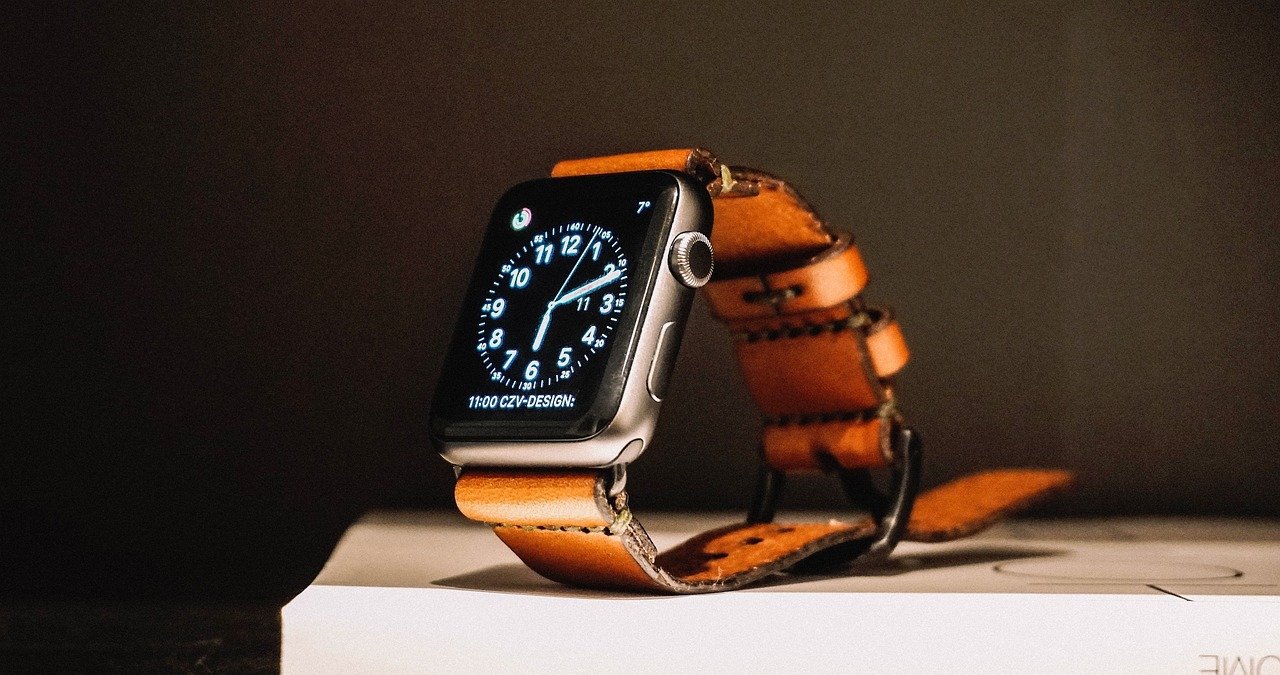
The iPhone can be unlocked simply by having an Apple Watch on your wrist, even without touching the screen. What was a practical solution during the COVID-19 pandemic in 2020 has now become a security risk that many users have active without knowing it.
How Apple Watch Unlock Started
During the pandemic, wearing masks complicated the functioning of Face ID, Apple's facial recognition system. To solve this, the company implemented a feature that allows unlocking the iPhone when it detects a paired and nearby Apple Watch. This alternative was well received by millions of users who needed to access their phones without removing their masks in public spaces.
⚠️ The Current Danger
With the end of mandatory masks, this feature lost its original utility and became a gateway for unwanted access. If someone is near the owner and the Apple Watch remains within the allowed proximity range (up to 3 meters or about 10 feet), that person could unlock the iPhone without difficulty.
The Most Feared Theft Scenario
The most serious risk appears in theft situations. If a criminal snatches the phone and the owner remains nearby, the iPhone could automatically unlock upon detecting the Apple Watch in the vicinity. This facilitates immediate access to personal information and sensitive apps before the victim can remotely lock the device.
What Can Be Done with the Unlocked Phone
This feature does not allow authorizing Apple Pay payments or validating operations in apps without the passcode or Face ID. However, once the phone is unlocked, conversations, photos, emails, and other apps that do not require additional authentication can be accessed.
How to Disable the Feature Step by Step
The recommendation from cybersecurity experts is to disable this option to avoid unwanted access. The process is simple:
- If the Apple Watch appears with the switch in green, turn it off.
- If it is already disabled, no action is needed.
- This option is disabled by factory default, but it is common that some users enabled it during the pandemic and forgot about it.
🛡️ Key Security Data
- Requirements for it to work: the iPhone must have been previously unlocked after putting on the watch, the Apple Watch cannot be in 'Sleep' mode, and recent physical activity must be detected.
- Maximum distance: 3 meters (about 10 feet) between both devices.
- Quick lock: if you press 'Lock iPhone' from the watch, Face ID and any proximity unlock are deactivated; only the numerical passcode can reactivate the device.
A Check That Can Save Your Data
To give our foreign readers some local context: in Argentina, a country currently facing a tough economic situation where approximately 5.3 million people are dealing with debts, personal information is incredibly valuable and often targeted by scammers. Protecting access to your phone is fundamental anywhere, but in contexts of economic vulnerability, cybercriminals tend to be more active. Reviewing your iPhone's security settings requires no technical knowledge: it only takes a few minutes to detect configurations that have been active for years without the owner remembering.
Sources: Infobae, La Verdad Noticias, Applesfera